
Getting started
Set up in an afternoon. Run it from the first shift.
How a drilling contractor sets up Iron Watchdog Safety, what the crew does on their phones, and what supervisors and managers look at each day, week and month.
The pictures show Verity Drilling, a made-up company we keep filled with six months of records, so no real company's data is shown.
How it fits together
Four building blocks, and one loop that runs every shift.
Sites
Where the work is: a mine, a project, a water well. The client and MSHA mine ID go here.
Vehicles & equipment
Every truck, rig, compressor and trailer, each with its own QR label.
People
The whole roster, with or without a login: MSHA IDs, training, certificates, crews.
Forms
Truck checks, Take 5s, workplace exams, observations, or your own. Every one sent becomes a record.
- 1
The crew fills in forms
On their phone, at the truck or the pad: pass or fail, a photo, a finger signature.
- 2
A fail becomes an action
Every failed item opens a corrective action. A critical fail takes the truck out of service and emails supervisors.
- 3
Someone fixes it
A supervisor gives it an owner and a due date. The owner marks it done with a photo of the fix.
- 4
A supervisor checks and closes it
Closing it can sign the truck back into service. Overdue fixes send reminders on their own.
Who does what
| Role | Who it's for | What they do |
|---|---|---|
| Admin | Owner, safety manager | Everything, including company settings, members and roles, and sharing with clients. |
| Supervisor | Toolpushers, site supervisors | Runs crews: people, sites and units, reviews reports, hands out and checks corrective actions. |
| Member | Drillers, helpers, mechanics | Fills in forms, reports observations, fixes the actions they own. |
| Viewer | An auditor, a client's safety rep | Reads records, reports and actions. Can't change anything. |
Day one: set up
About an hour, at a computerDo these in order. The Home page keeps a checklist of them, and ticks each one off as you go.
-
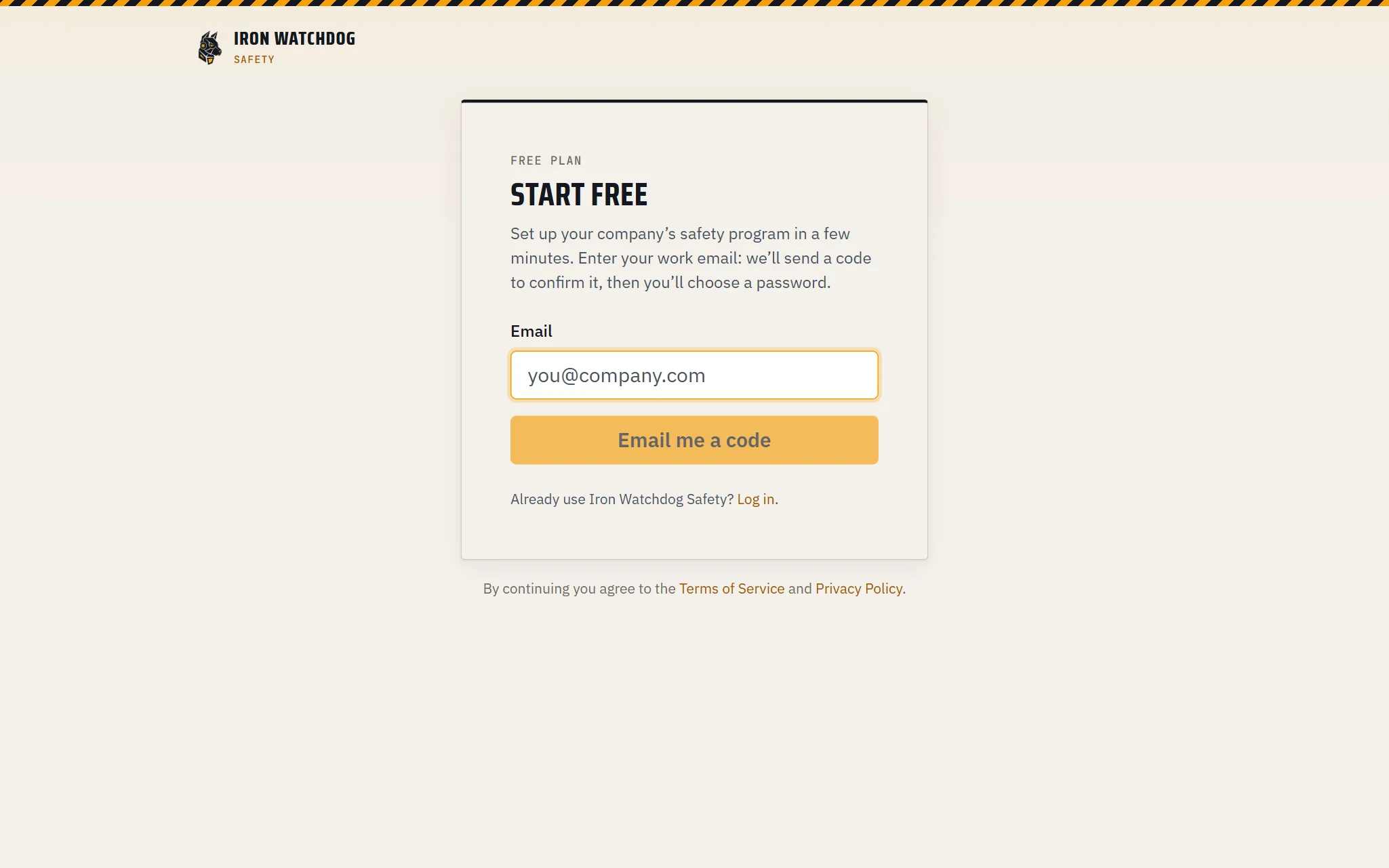
Start free and set up your company
Go to Start free, enter your work email, type the 6-digit code we email you, and choose a password. Then name your company, pick its country and "Drilling contractor". You're its admin.
Coworkers with the same email domain can then "Ask to join", and you approve them. Gmail and other public addresses need an invitation.
-
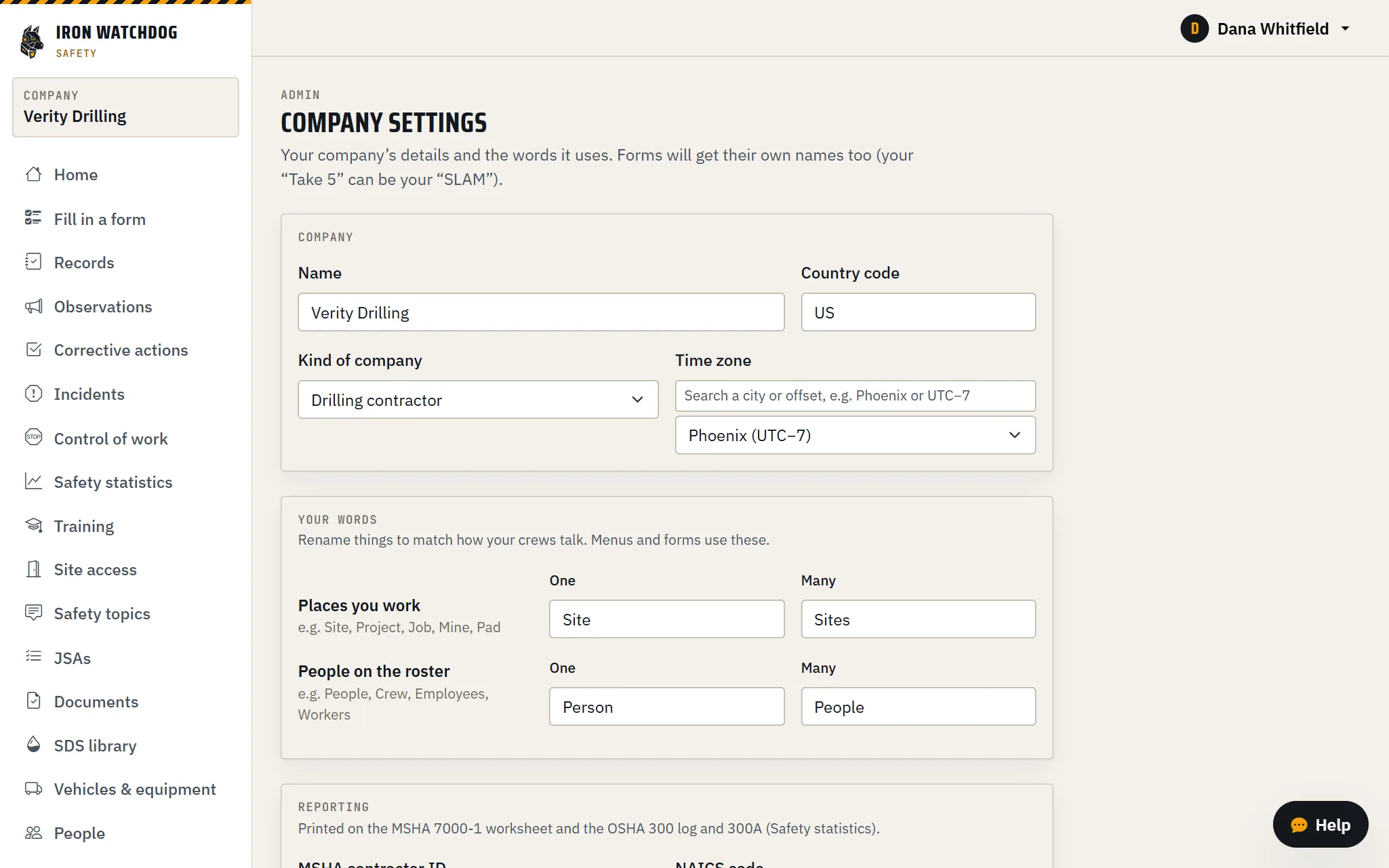
Check your company settings
In Company settings: your time zone, and "Your words": if your crews say Projects instead of Sites, or Crew instead of People, change it here and the whole app follows. Add your MSHA contractor ID under "Reporting".
-
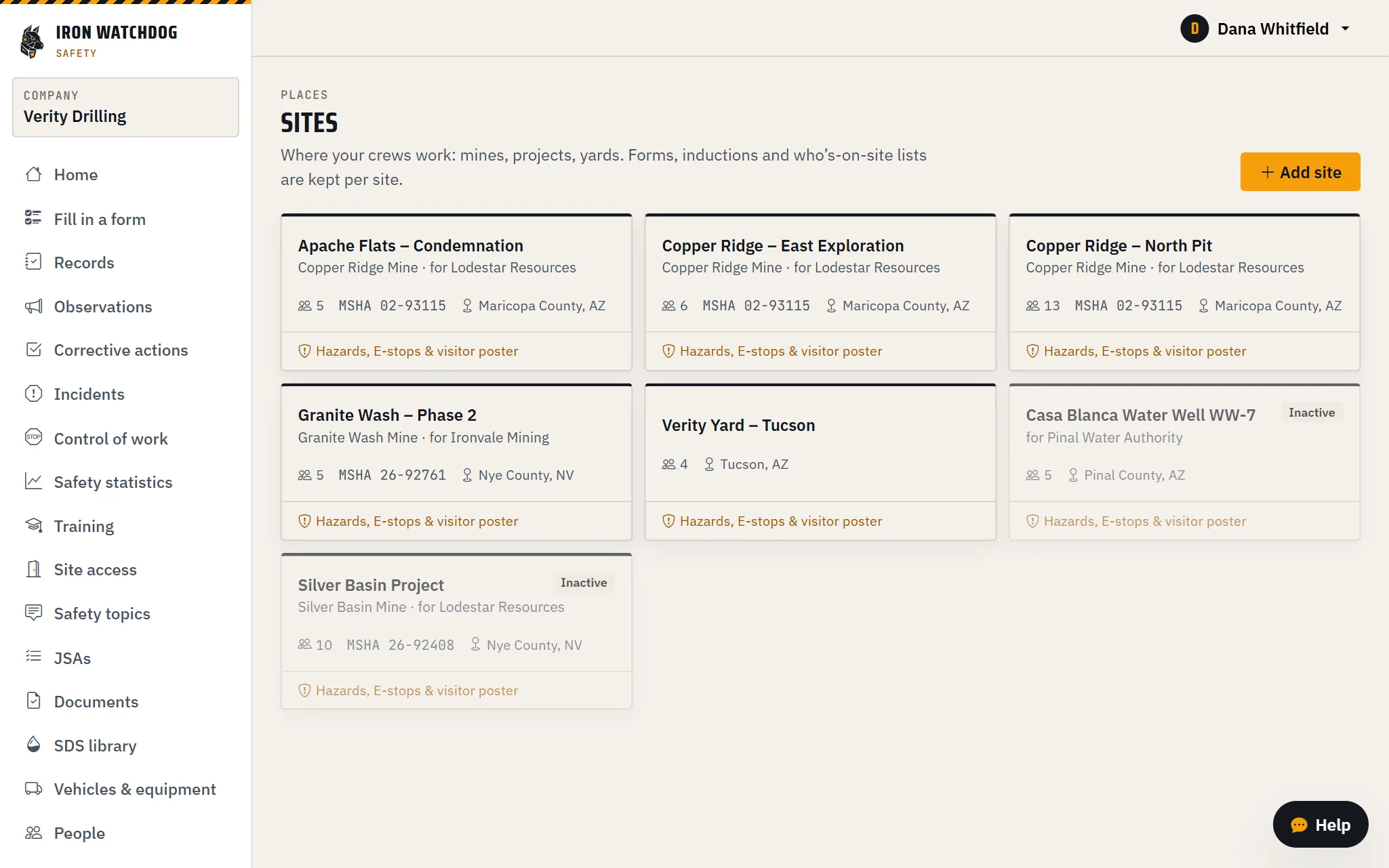
Add your sites
One per mine or project, plus your yard. Add the client (it's used when you share records with them) and the MSHA mine ID. A site without one is treated as OSHA. When a job ends, turn the site off: its records stay.
-
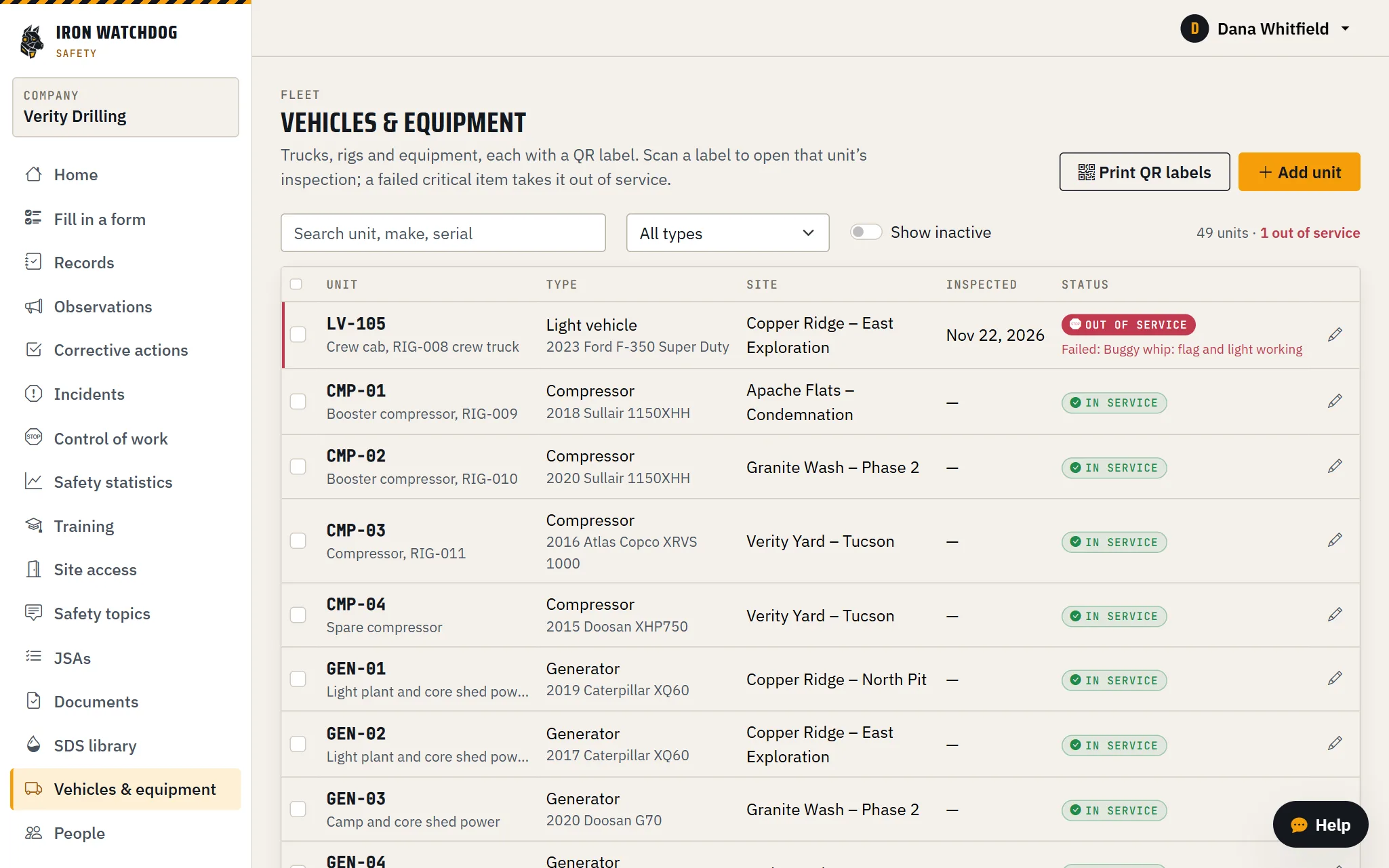
Add your vehicles and equipment, and print their QR labels
Every light vehicle, rig, compressor, generator and trailer, by unit number. Then tick them and press Print QR labels: they print on Avery 5163 / 8163 sheets (print at 100%, not "Fit to page"). Stick each one in the cab where the driver sees it.
Scanning a label with a phone camera opens that truck with a big "Inspect" button. No hunting for the unit number.
-
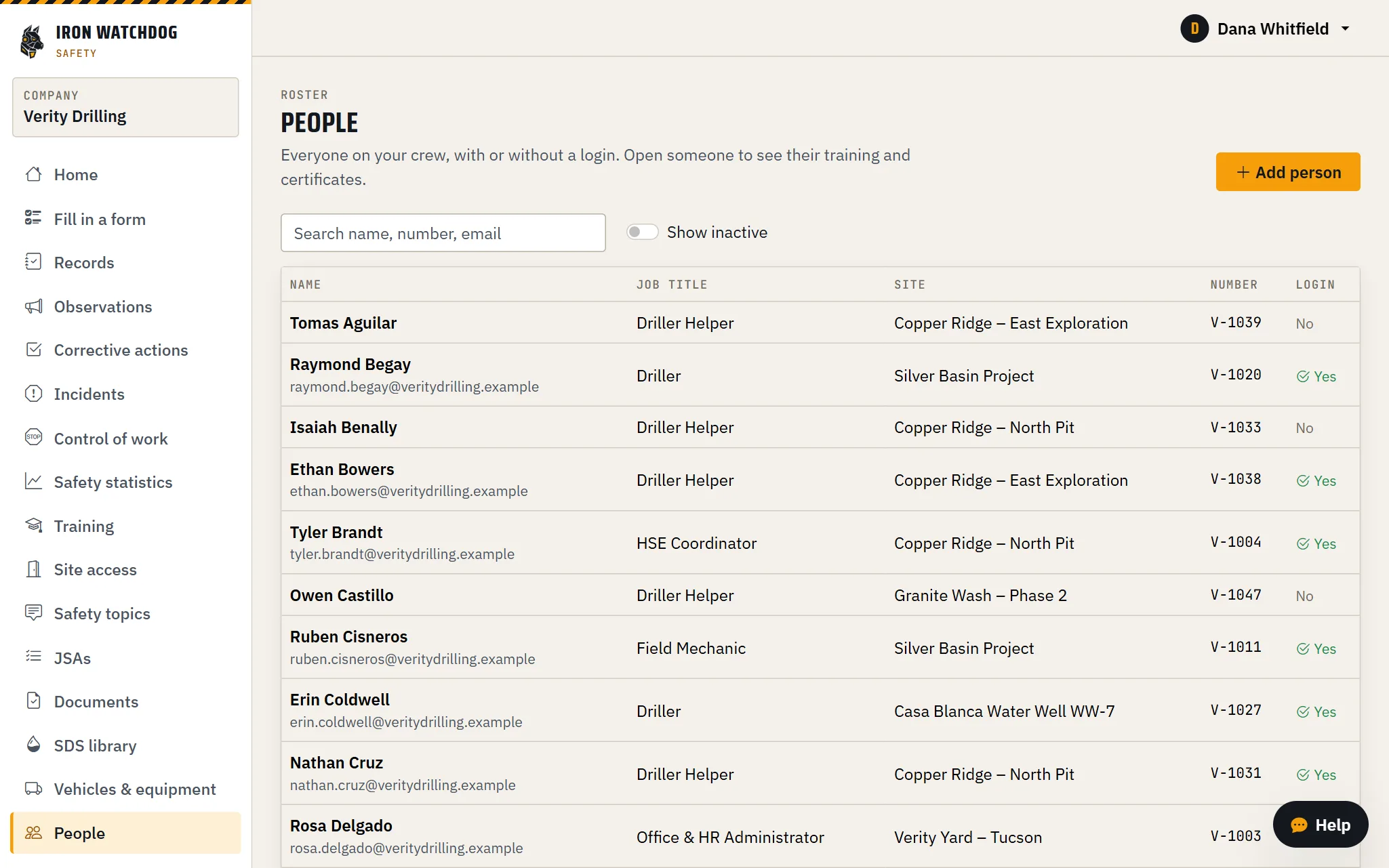
Add your people
The whole roster, including people who will never log in: name, job title, site, and MSHA ID if they have one. Training records and certificates hang off each person. Under Crews, list who works on each rig and shift, and its lead.
-
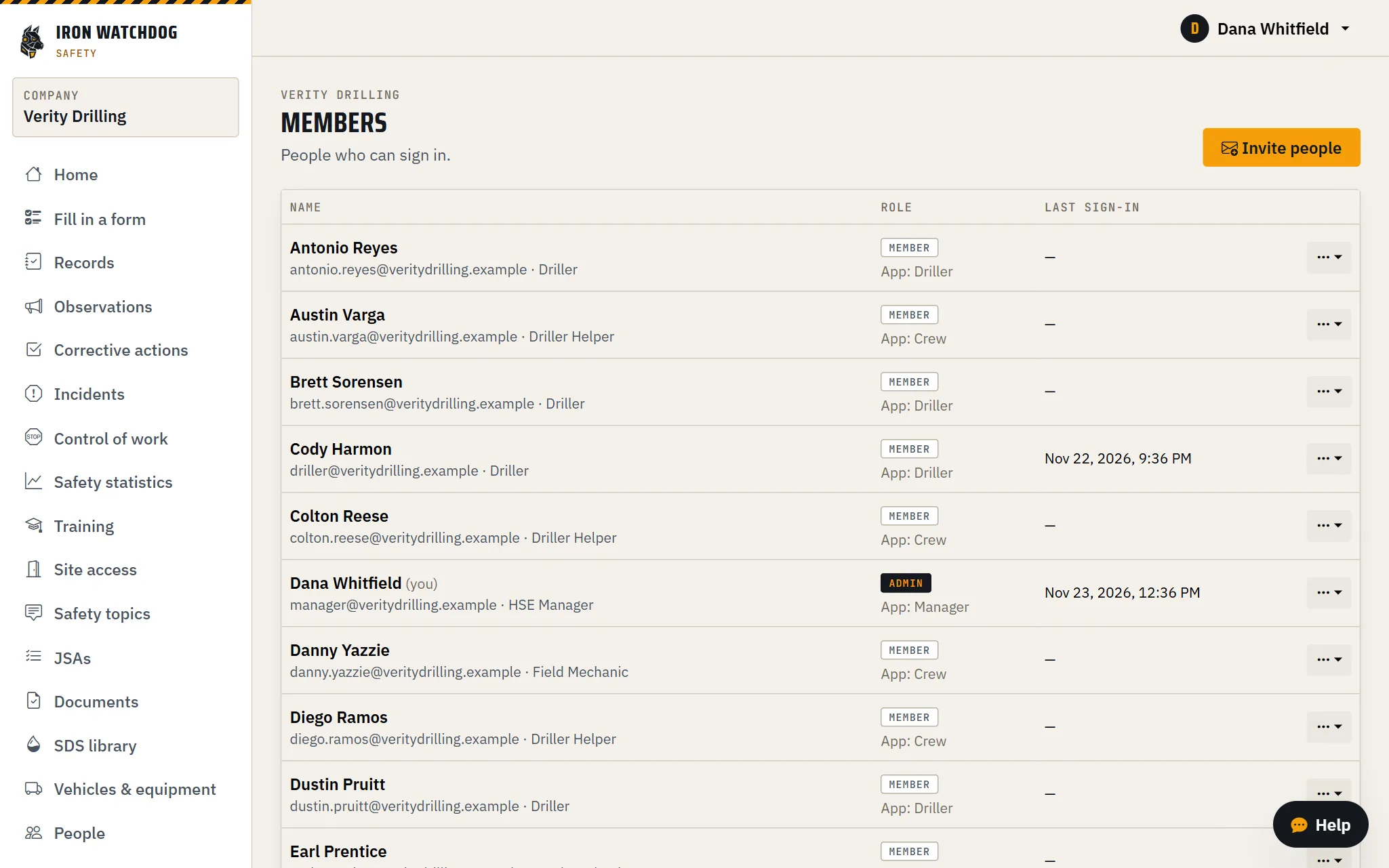
Invite your team
On Members, "Invite people": paste their emails and pick a role. Toolpushers and site supervisors as supervisors, drillers and helpers as members. Invitations last 14 days.
A crew sharing one inbox can use plus-addresses (crew+jsmith@yourcompany.com) so each person has their own login and their own signature on records.
-
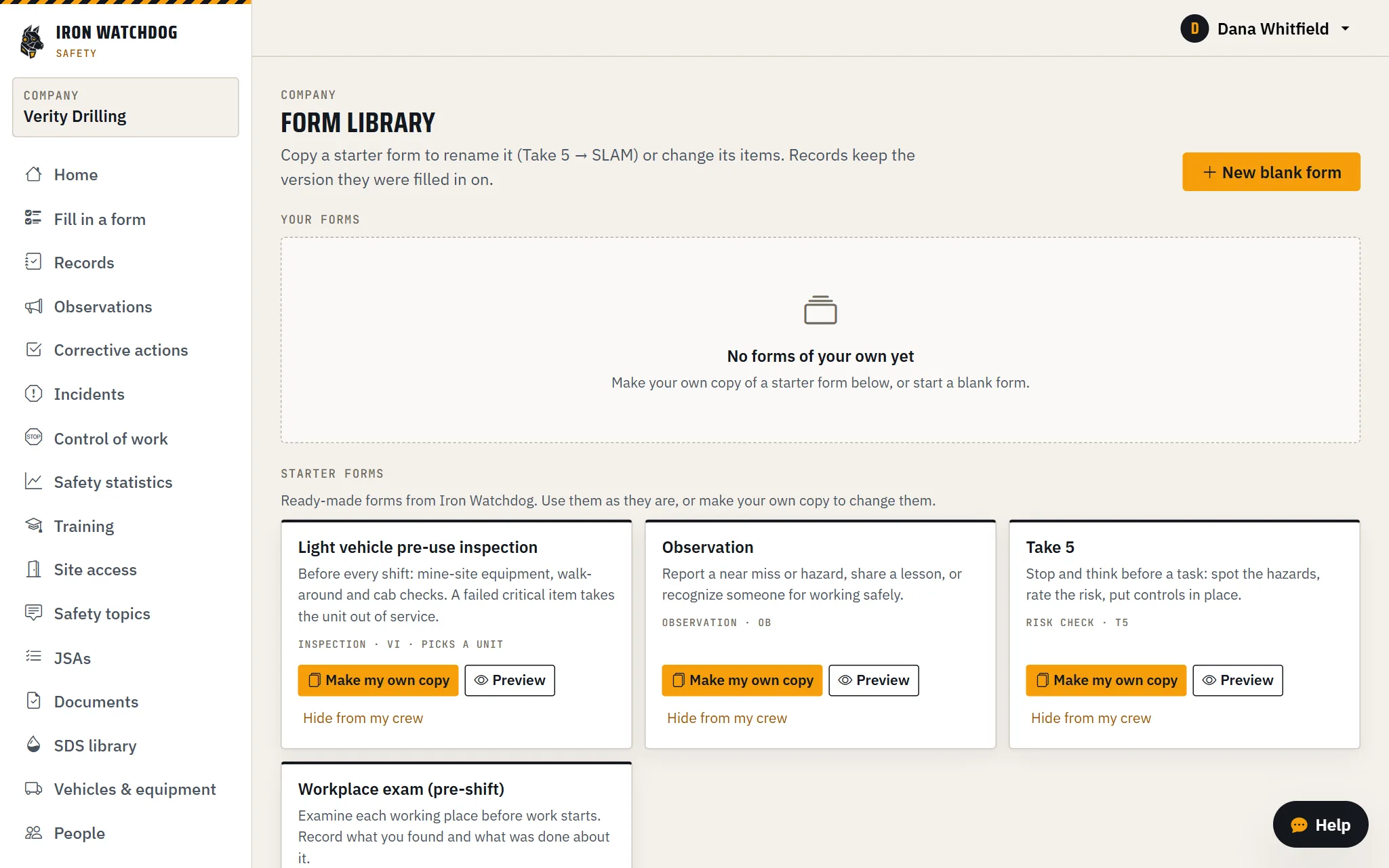
Look over the forms
Four starter forms are ready: the light vehicle pre-use inspection, the Take 5, the workplace exam (pre-shift) and the observation report. In the Form library, "Make my own copy" to rename one (Take 5 to SLAM or FLRA), add your own items, or build a form from blank. Hide the ones you don't use.
The crew, on their phones
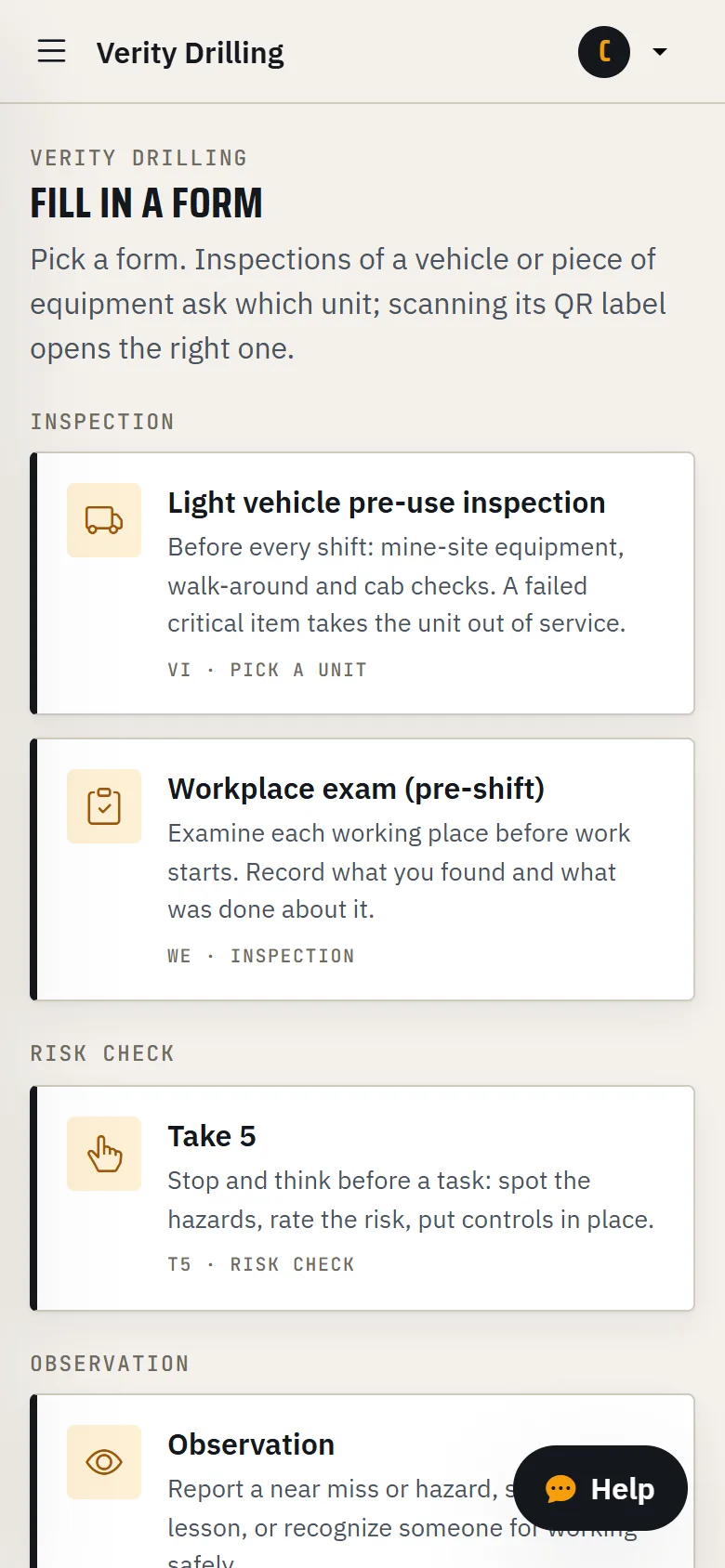
Every shiftNothing to install: it runs in the phone's browser. Have them sign in once and save the site to their home screen.
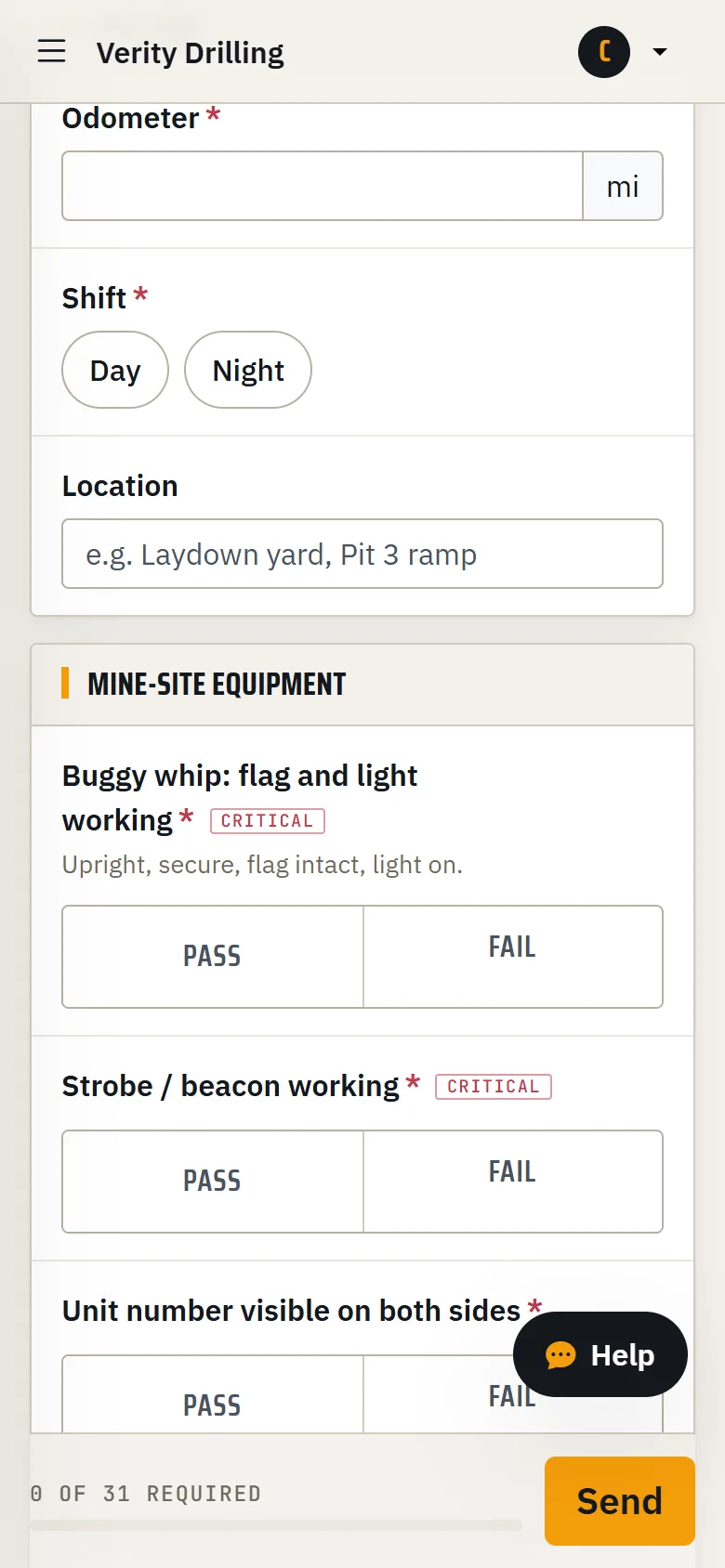
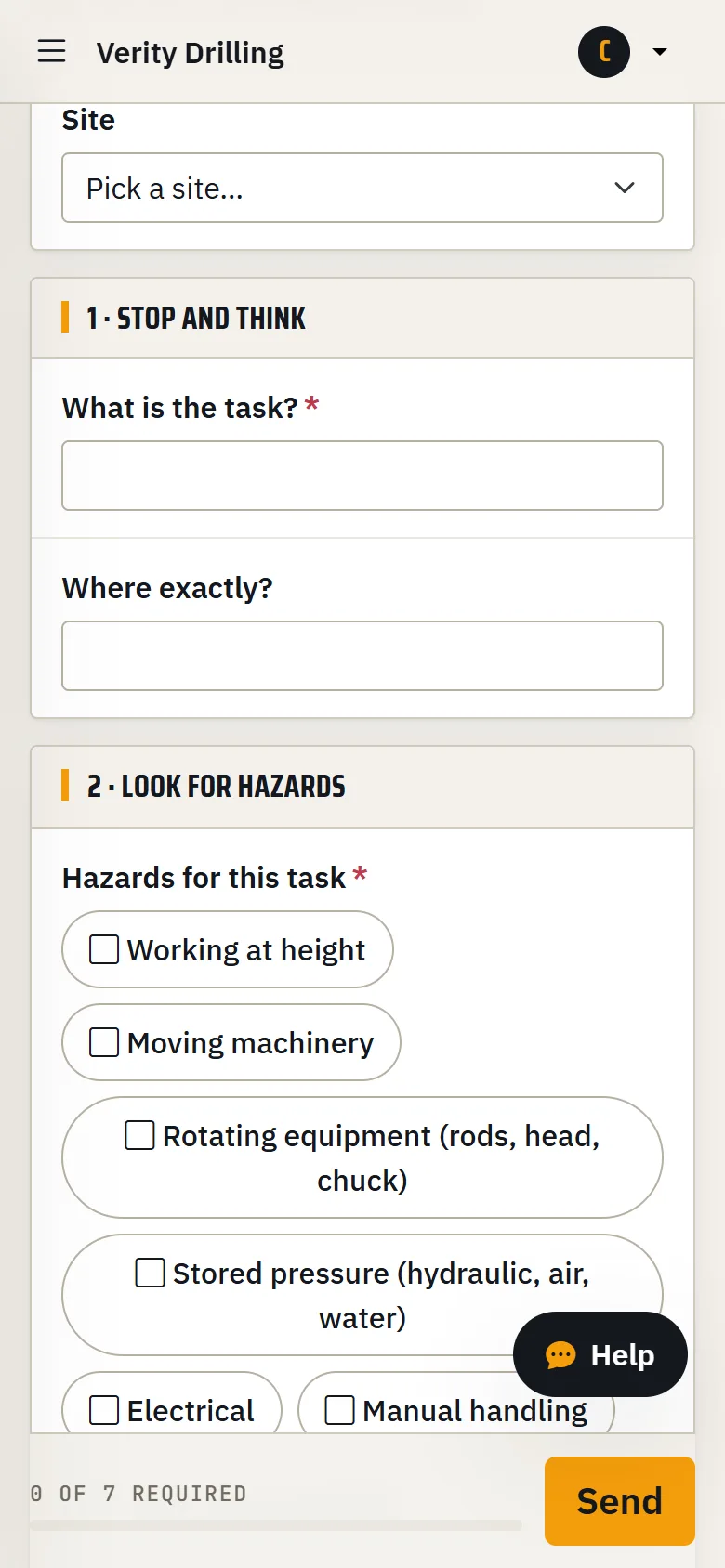
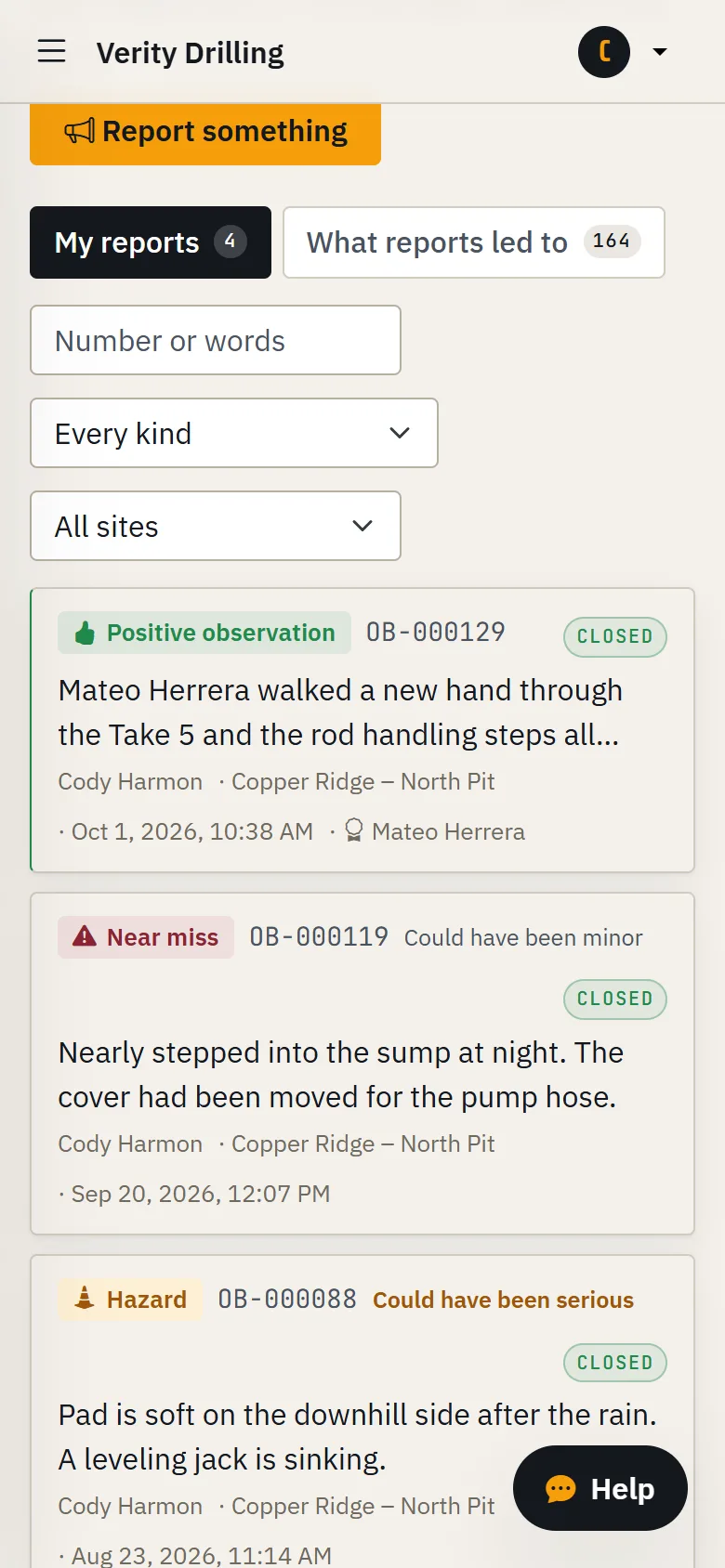
Before the shift
The driller does the workplace exam for the pad and the rig. The driver does the truck check: scan the QR label, go down the list, sign with a finger, Send.
Before each task
A Take 5: what's the job, what could hurt someone, what controls are in place, is it safe to go ahead. If it isn't, it asks who they told.
When something's wrong
A failed item asks what's wrong and for a photo, and opens a corrective action on its own. A critical fail puts the truck out of service until a supervisor signs it back in.
When they see something
An observation: a near miss, a hazard, a positive observation (it can thank someone by name), or a safety share. It can be sent without their name.
No signal at the pad? Unsent answers stay on the phone. Send when they're back in range. A sent record can't be changed: it gets a number like VI-000123, a PDF, and a fingerprint that would show any edit.
Supervisors and managers
A few minutes a dayHome shows what needs you. Work down it.
-
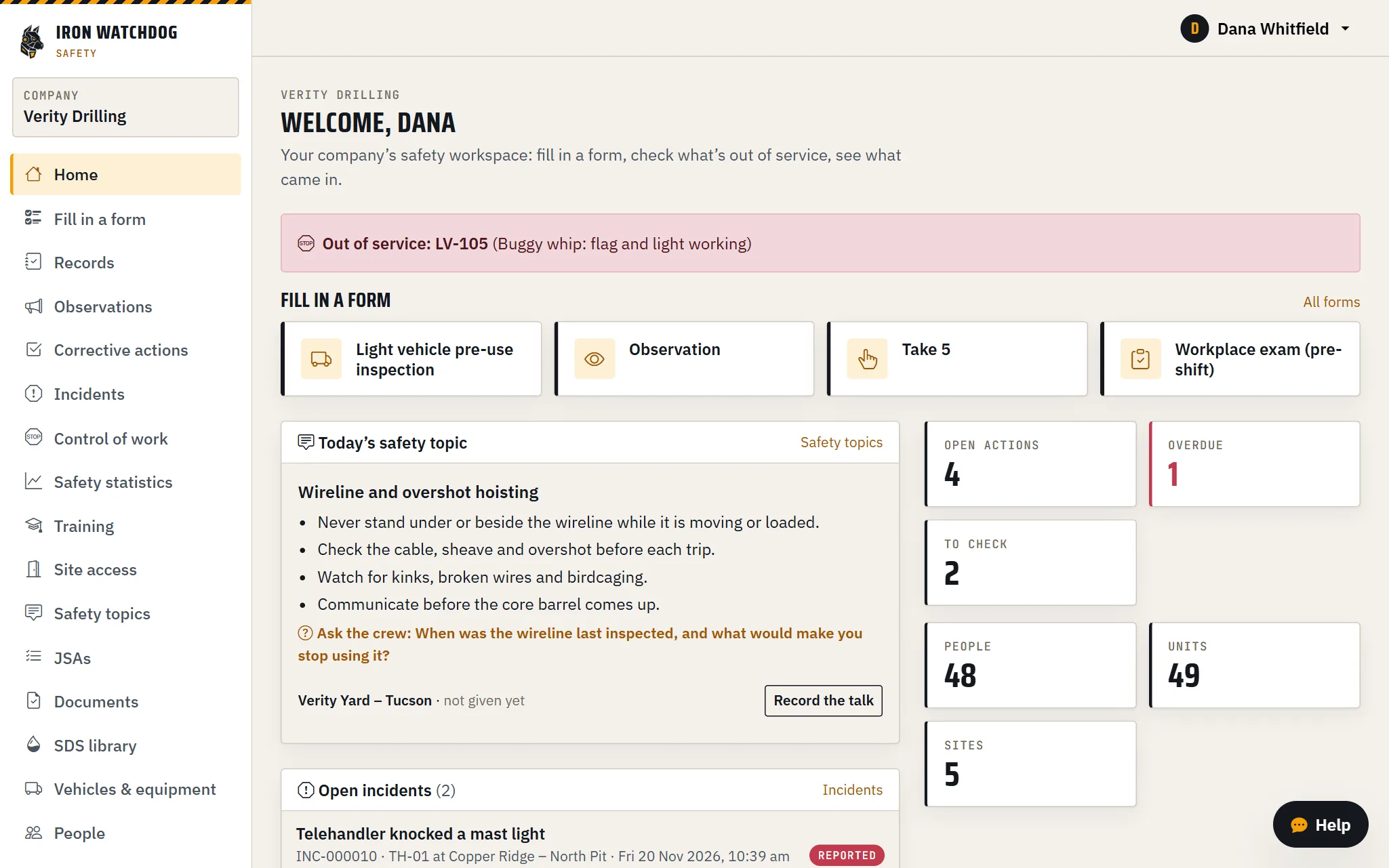
Start on Home
A red banner for anything out of service, new reports to review, actions with no owner, overdue fixes and fixes waiting for your check, open incidents, and the last six months at a glance.
-
Hand out and check corrective actions
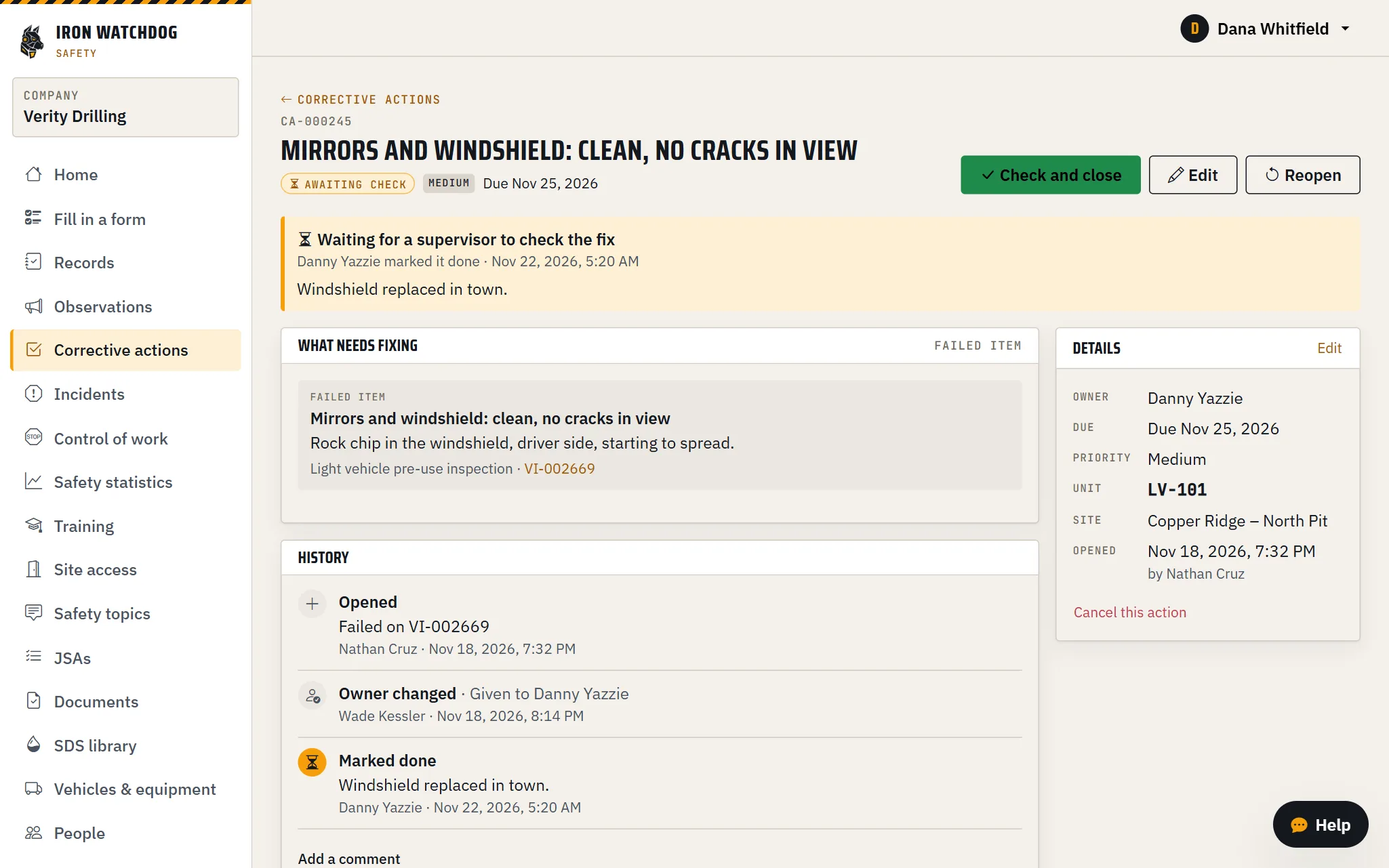
Give each action an owner and a due date: they get an email. When they mark it done (with a photo of the fix), check it and close it, or reopen it with a reason. Closing one from a critical fail signs the truck back into service.
Overdue actions remind their owner on their own, and escalate to admins and supervisors after three days.
-
Review observations
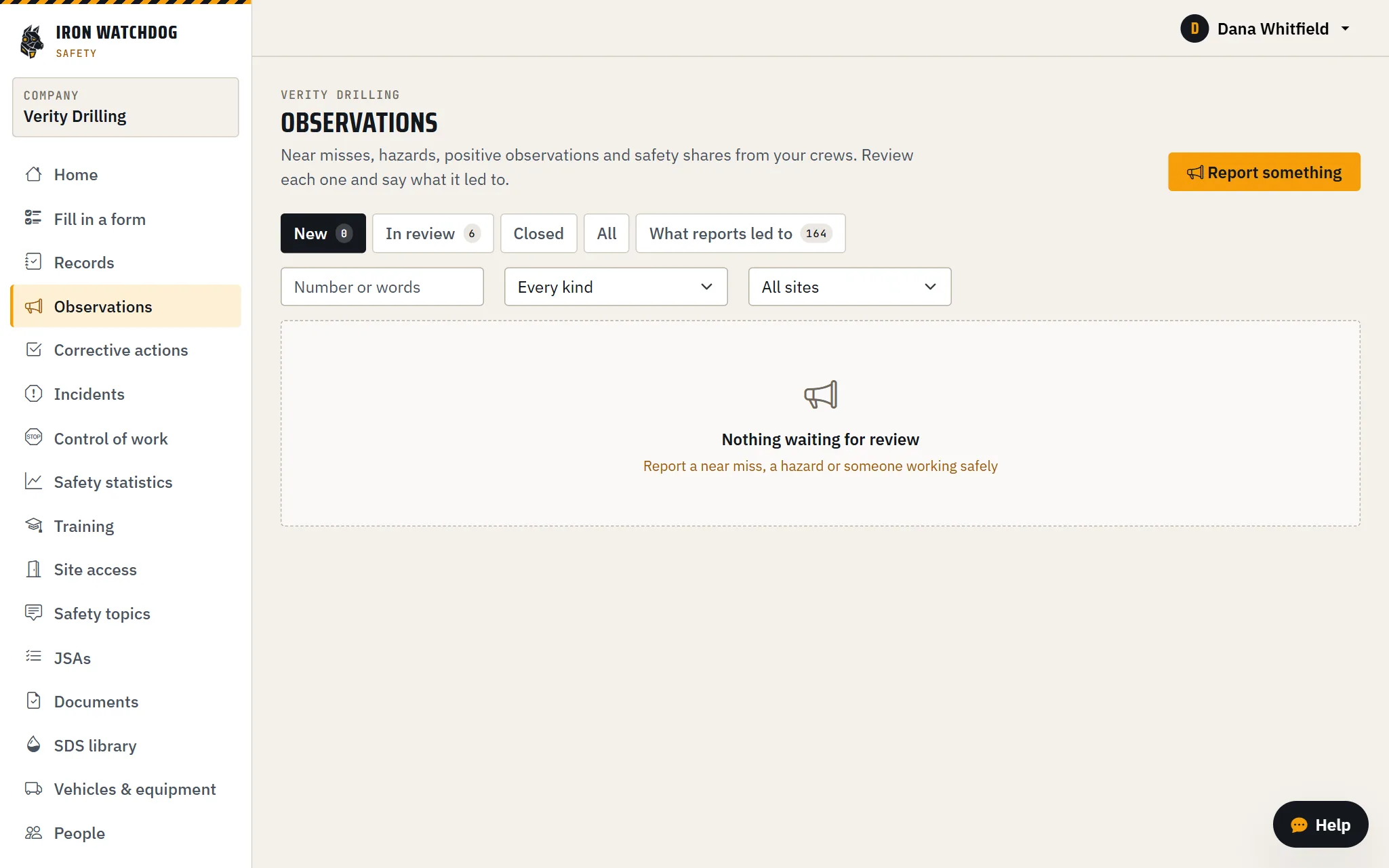
Start the review, add a corrective action if one is needed, then close it with what it led to. Shared outcomes show to everyone, without the reporter's name, so the crew sees their reports change things.
-
Find any record
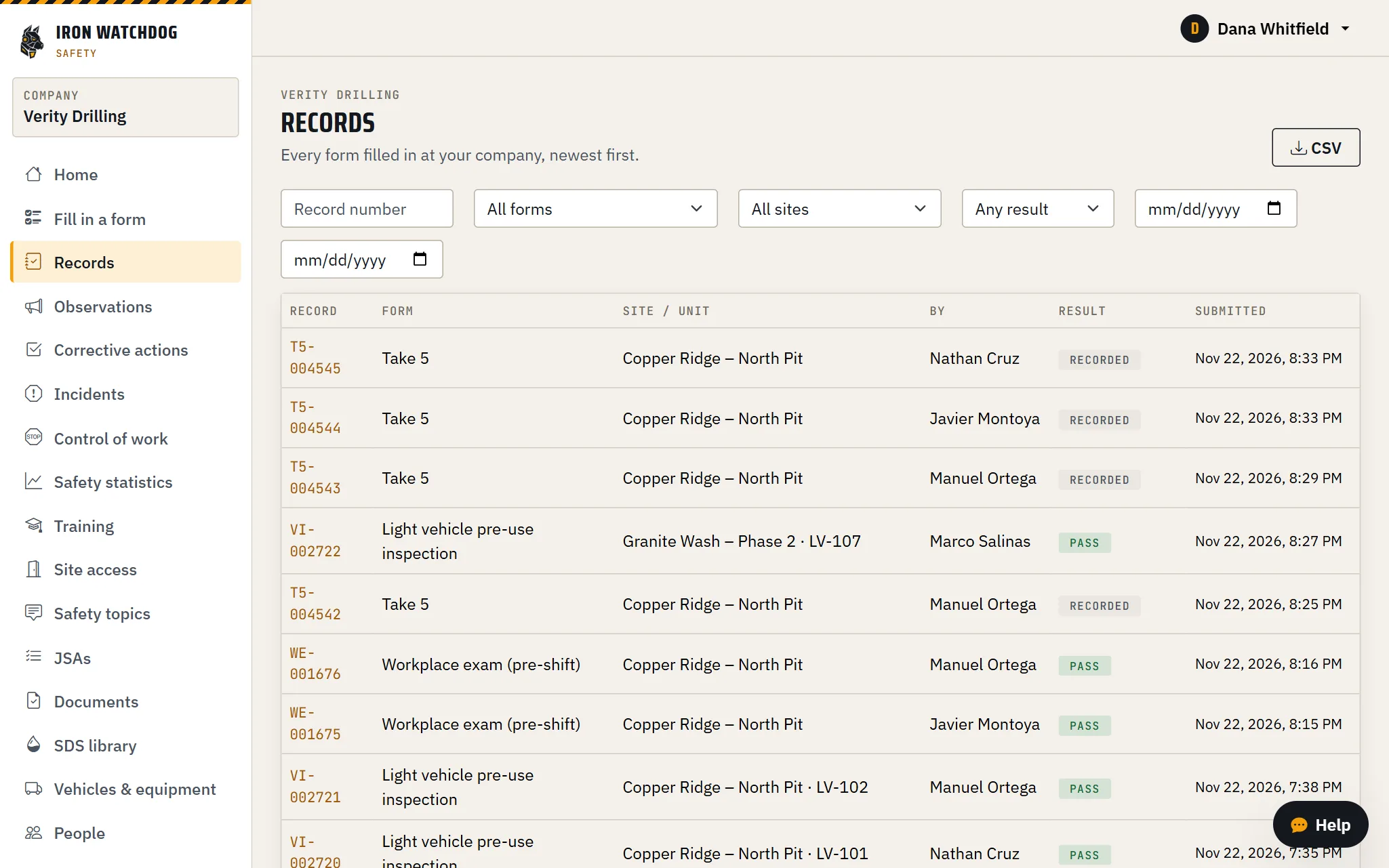
Records has every form ever sent: search by number, filter by form, site, result and dates. Each one opens with its answers, photos, signatures and a PDF. "CSV" exports the list.
Each month
Ten minutesHours worked turn your records into the numbers clients ask for.
-
Enter last month's hours worked
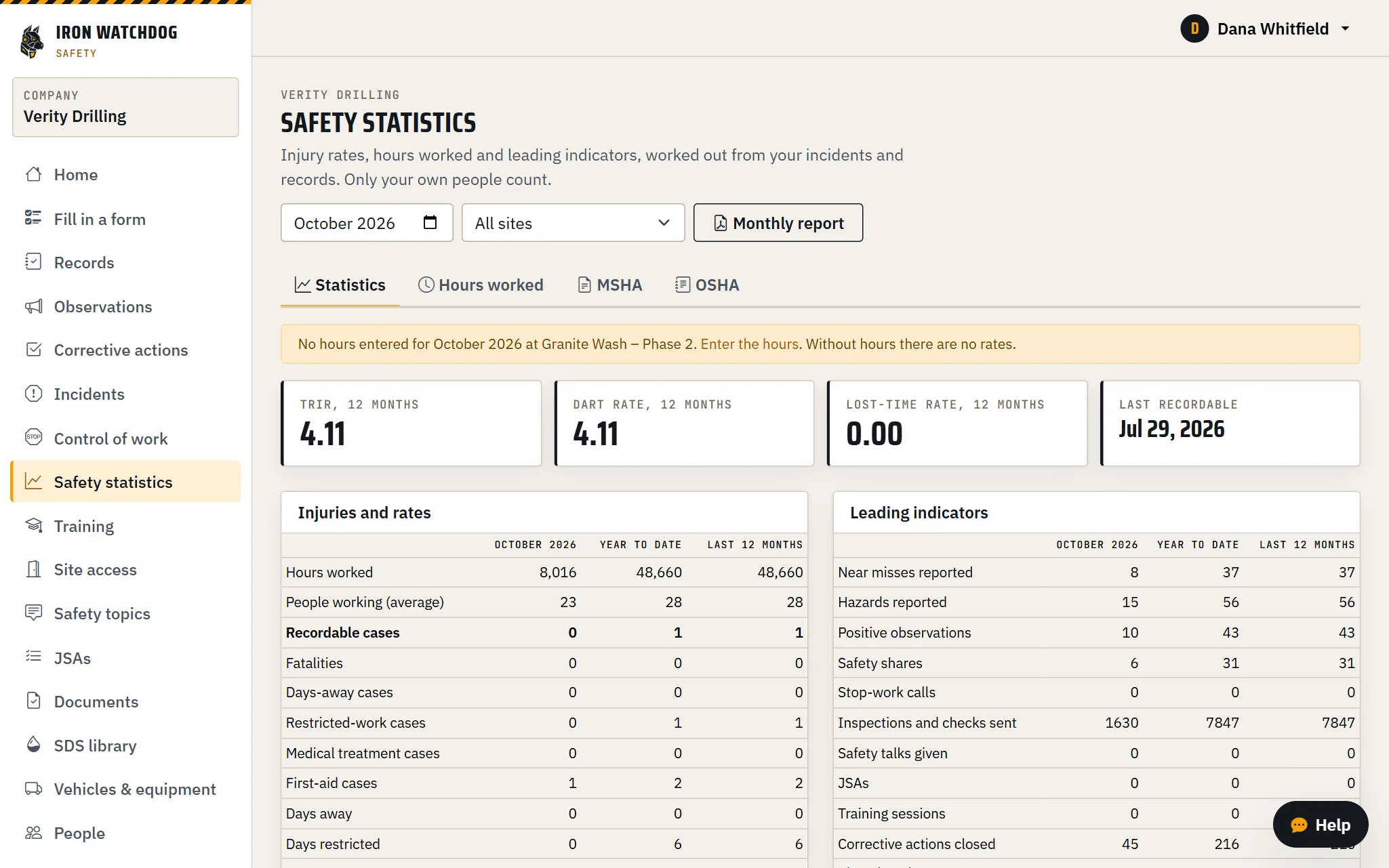
Under Safety statistics, "Hours worked": employee hours and the average number of people for each site. From those, Iron Watchdog Safety works out TRIR, DART and lost-time rates, the monthly safety report, and lays out the MSHA 7000-2 and OSHA 300 logs for you to file.
-
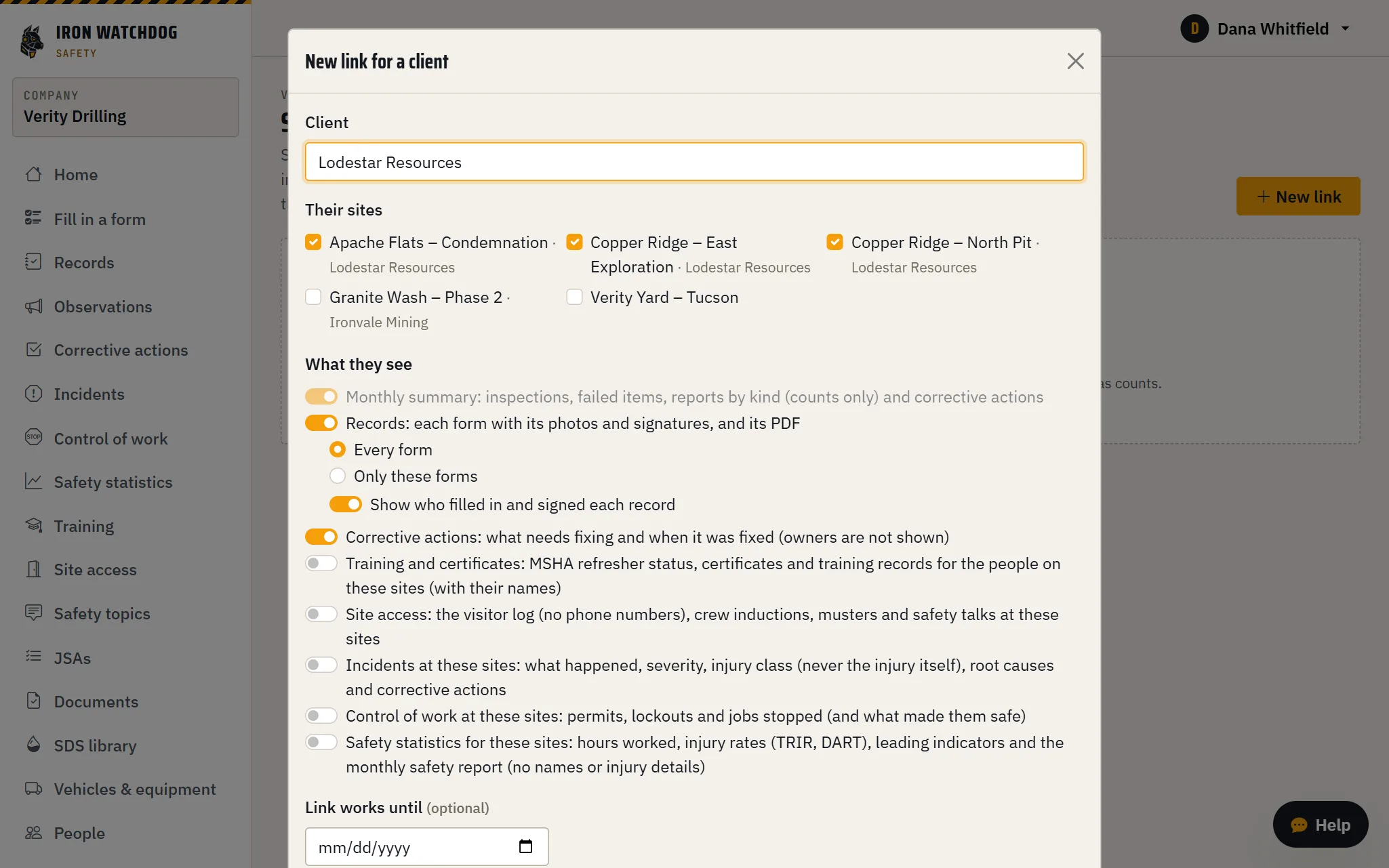
Share with your client
In Share with clients, make a read-only link for one client: the sites you choose, and what they see (records, corrective actions, training, statistics). They open it with no account. It's free for them too, and you can turn it off at any time.
When you're ready
The rest is already there. Turn each part on when the basics are running.
Training
MSHA Part 46 and 48 training records, a 5000-23 for each person, refreshers and certificates coming due.
Site access
A QR poster at the gate: visitors sign in with their own phone and get the site's hazards briefing. Who's on site now, and musters.
Daily safety talks
A topic for every site each day, from 40 drilling starters or your own, with who attended.
JSAs
12 drilling starters, from rig moves to wireline core retrieval. The crew signs on one phone.
Incidents
Report it in site time, the MSHA checklist, five whys and root causes, actions, and the 7000-1 worksheet.
Control of work
Permits to work with gas tests, lockout / tagout with personal locks, and the stop-work log.
Stuck?
Inside the app, the Help button at the bottom right answers questions about how it works, and can look things up in your company's records. Or email info@ironwatchdog.com and a person will answer.
Start free
Your work email, a code, a password. Then follow the steps above.